
Today
The first tab: today's workout from your gym or your own plan, your classes, and how the week is going.
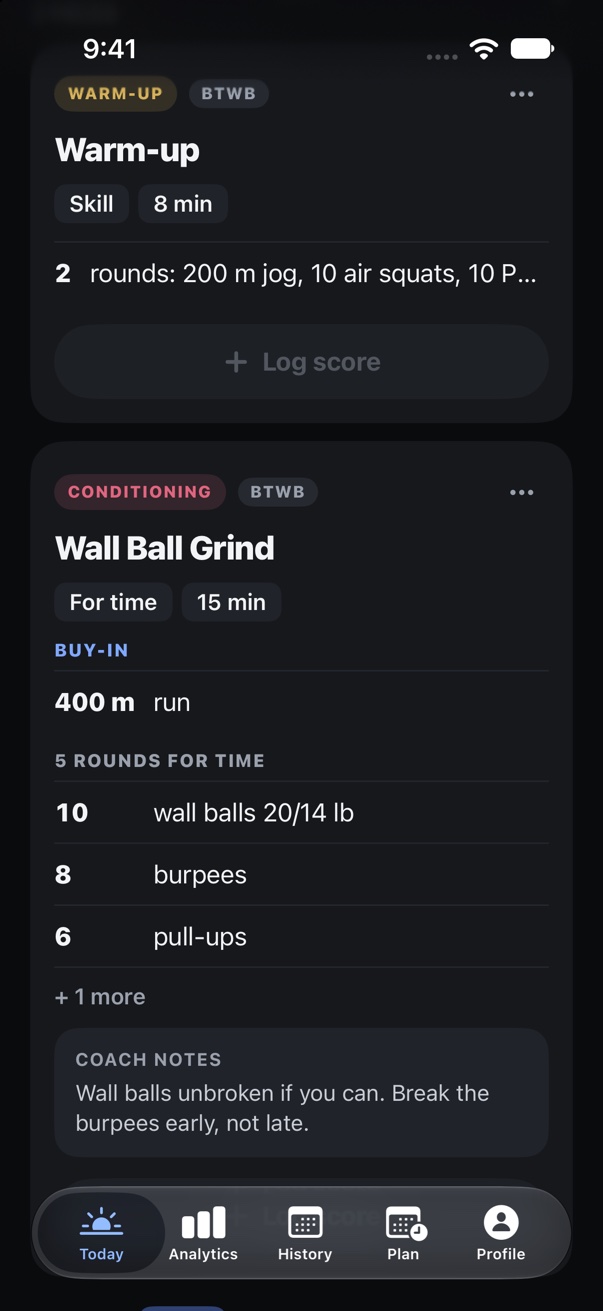
What's on Today
Today is the first tab on the phone and the first page on the web. From the top:
- Your gym's logo and name (or CrossAdapt if you train on your own). On the iPhone, a small watch symbol beside it shows whether the day has reached your Apple Watch: green when the watch has the whole plan, amber when it has only part of it, red when the day is too large to send, and grey when there's nothing to send or no watch. VoiceOver reads it out in words.
- The date, as “Today · Monday”, and a week strip with a dot under each day that has something planned or logged.
- Classes today, if you belong to a gym: the day's classes as tiles you can book, check into or cancel. See Book a class.
- Highlights and any running Challenge, when your gym has them on. See Community.
- Programming: the day's pieces, in order.
- Analysis: how the last seven days went (below).
A card at the top tells you when something needs you, such as a personal plan that needs paying or changes that haven't synced yet.
The day's pieces
Each part of the day (the warm-up, the strength, the metcon) is a piece. The Programming heading says where the day comes from and how long it runs, for example “Main · 4 pieces · 60 min”. Each piece card shows:
- What kind of piece it is (Strength, Conditioning, Skill…) and where it came from: the track's name for your gym's programming, Yours for a piece you added, Edited when you've changed the coach's piece for yourself.
- The title, then small chips for what you'll log and the clock, for example “1:30 on / 1:30 off × 5”.
- The workout exactly as the coach wrote it, then the coach's notes: cues, setup and scaling.
- Log score, or Edit log once you've logged it. See Logging a result.
A piece you've logged folds to a single line with your result, so the rest of the day is easy to see. Tap Edit on it to change the result.
Piece details
Tap a piece card to open its details. Three tabs:
- Details
- The prescription, your loads (any percentages worked out from your own maxes), how you did last time and your best, and a card for each movement with your 1RM and 5RM and when you last did it. Tap a movement's name to see a demonstration.
- History
- Every time you've logged this workout before, with Rx'd or Scaled.
- Results
- Your past sets of these movements, by date.
The piece menu
Tap … on a piece, or press and hold it:
- Edit
- Change the piece for yourself. On a coach's piece, your version sits on top and theirs stays as written. See Adapting a workout.
- Duplicate
- Copy one of your own pieces. Duplicate and save as workout also keeps it as a template you can schedule again.
- Move to date
- Move one of your own pieces to another day.
- Restore original
- Throw away your edit and go back to the coach's version.
- Remove
- Delete a piece you added, or hide a coach's piece from your day. Results you've logged are never deleted.
To change the order of the day, tap Reorder beside Programming, drag the pieces, then tap Done. To add something, tap Add piece under the last one.
Choosing a level or option
Some programming offers the same slot more than one way: Beyond the Whiteboard's levels (Performance, Fitness, Foundations, for example), or SugarWOD's “Option 1” to “Option 4” on a recovery day. Today shows these as one card: Choose one of 3 options. Tap it, pick the one you'll do, and the others step aside. Show all options brings them back if you change your mind.
If you've hidden a piece and want it back, tap Show the piece you removed from this day under the day's pieces.
Other days
Tap any day in the week strip to see it, and swipe the strip sideways for other weeks. A Today button appears at the top to bring you back. Dots under a day mean something is planned; a green dot means you logged something.
Future days show what your gym has published so far. Many gyms publish a day or two ahead at a set time, so tomorrow may be empty until then. You can still add your own pieces to any day; see Plan.
On a day with nothing planned you'll see “No planned workout loaded yet.” with Add piece. If you've connected Beyond the Whiteboard or SugarWOD, Fetch from BTWB and Fetch from SugarWOD pull that day's programming in.
The week at a glance
Under the day's pieces, Analysis · Last seven days shows how much of last week's plan you did, split four ways:
- As written
- Done as programmed.
- Changed
- Done, but scaled, swapped or edited.
- Cut short
- Started but not finished.
- Not done
- Planned and skipped.
It appears once there's a week of planned work to look back on. For the full picture, see Charts.
Today on the web
At app.crossadapt.app, Today is the first page. Use the arrows to move between days, and Today to come back. Each piece has its coach notes and a Log button, which turns into your score once you've logged it. A This week panel sits alongside. Everything you change on the web shows on your phone and watch, and the other way round.
Something here doesn't match what you see, or still stuck? Email support@crossadapt.app and a person will answer.